

Midi Fighter 3D Setup Guide
User GuideAbleton
1. Download the Midi Fighter Utility, it is an essential tool for configuring and updating your Midi Fighter
- Midi Fighter Utility OSX - 10.7 or newer
- Midi Fighter Utility Windows - Vista 32/64 or newer
2. Plug in your Midi Fighter 64 via USB (not to a USB hub) and follow the onscreen instructions on the utility.
3. If you need to map your unit to something else than a Drum Rack make sure "Notes+CCs" is selected as MIDI Type in the MF Utility.
4. Open Ableton Live (If you are using Windows ensure the MF Utility and any other MIDI related software is closed before opening Ableton)
5. Go to Preferences > MIDI/Link
6. Go to the Midi Ports section and turn REMOTE on for the input and output of the Midi Fighter. You will also need to turn TRACK on for the input and output of the Midi Fighter if you wish to use yours for finger drumming as seen here. More information about what this means is available in this article.
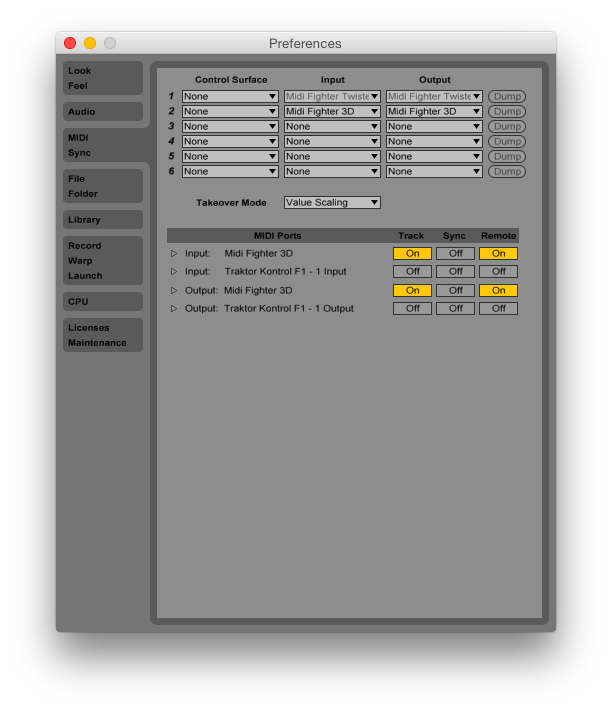
- Learn more about MIDI mapping your controls
- If you are using a Mad Zach Sound Pack we made a great video to show how to easily set them up on Ableton available here.
Traktor
1.Download the Midi Fighter Utility, it is an essential tool for configuring and updating your Midi Fighter
- Midi Fighter Utility OSX - 10.7 or newer
- Midi Fighter Utility Windows - Vista 32/64 or newer
2. Plug in your Midi Fighter 3D via USB (not to a USB hub) and follow the onscreen instructions on the utility.
3. Make sure your Midi Fighter is in "Traktor Mode" in the Utility. Find out what Ableton and Traktor mode mean in the Midi Fighter Utility
4. Once you have the firmware up to date you need to download a mapping. Here are the mappings
5. Import your mapping.
- If you are using only one controller, click the big "Import" button in the Preferences menu ("Import" is between "Export" and "Setup Wizard") and check all available boxes under "Select Categories to Import"
- If you are using your Midi Fighter with another controller read this article on how to import multiple TSI files
6. Go to Preferences > Controller Manager and select the Midi Fighter mapping in the Device drop down menu. There may be more than one. Select one line at a time and set the in and out ports to your Midi Fighter.
7. If your effects aren't working correctly then you need to import the effects settings again. Use the big import button between export and set up wizard in the preferences menu under controller manager. Import the *.tsi file again and only check "effects settings" under "select categories to import"If you want to use your Midi Fighter 3D in Remix Deck Mode, please see the Remix Deck Mode Guide