Ableton
1. Download the Midi Fighter Utility, it is an essential tool for configuring and updating your Midi Fighter
2. Plug in your Midi Fighter Spectra via USB (not to a USB hub) and follow the onscreen instructions on the utility.
3. Make sure your Midi Fighter is in "Ableton Mode" in the Utility. Find out what Ableton and Traktor mode mean in the Midi Fighter Utility
4. Open Ableton Live (If you are using Windows ensure the MF Utility and any other MIDI related software is closed before opening Ableton).
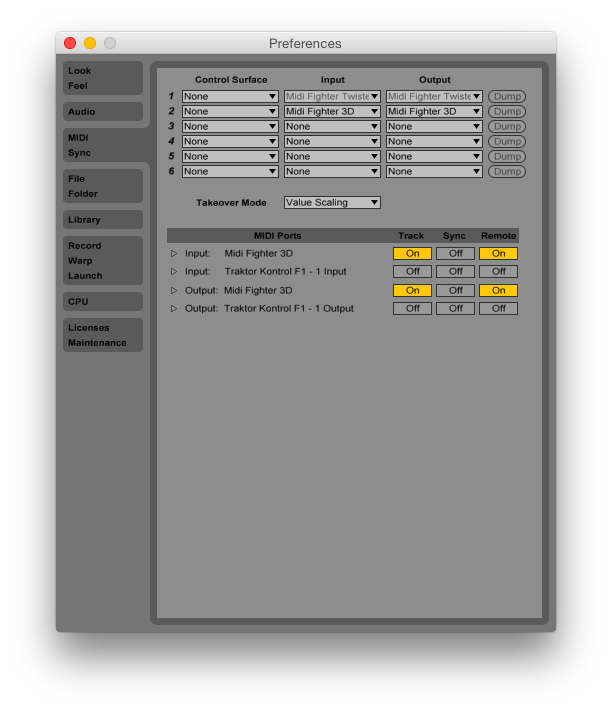
5. Go to Preferences > Midi/Sync
6. Go to the Midi Ports section and turn REMOTE on for the input and output of the Midi Fighter. You will also need to turn TRACK on for the input and output of the Midi Fighter if you wish to use yours for finger drumming as seen here. More information about what this means is available in this article.
- Quit Live
- Double click the live pack
- Select the destination to save the file
- Find the file you saved and open it in Live